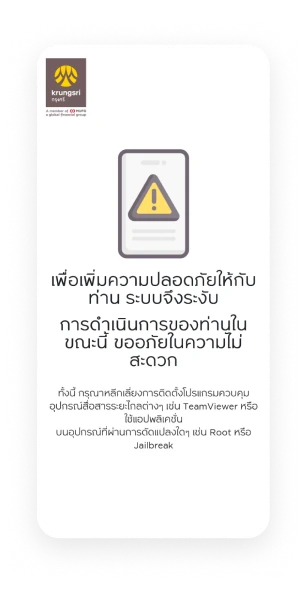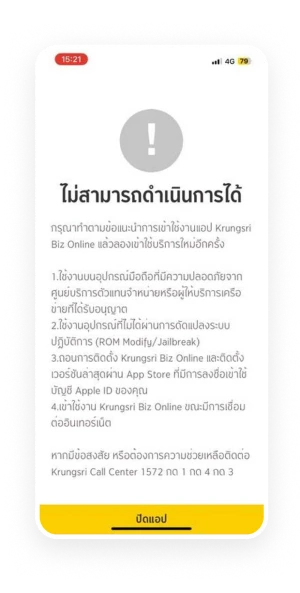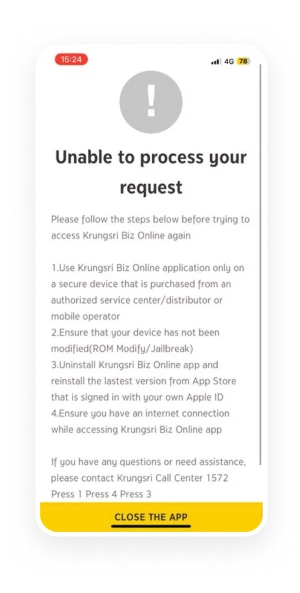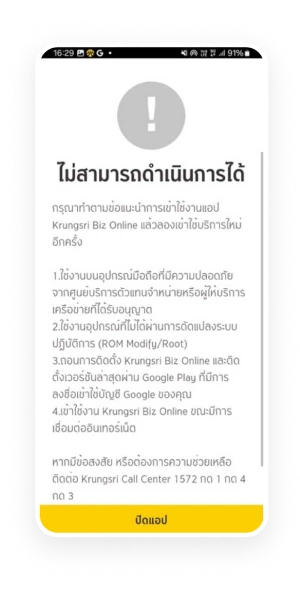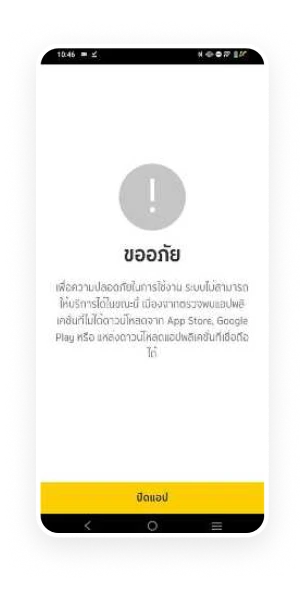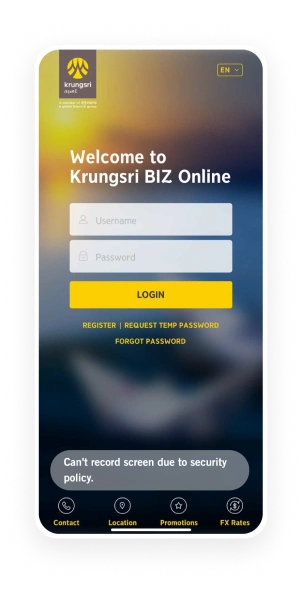

Krungsri Biz Online is committed to protecting your accounts and follows strict security standards under the Bank of Thailand’s regulations.
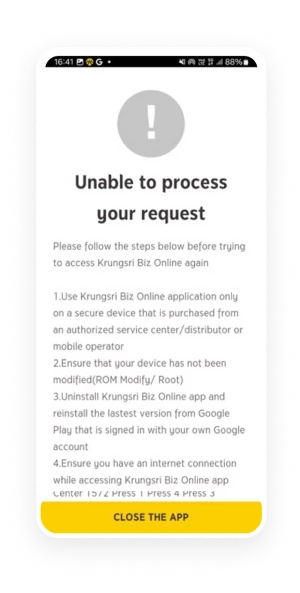
If our system detects that your device may be vulnerable to fraud — such as being rooted, using VPN/proxy, or running unauthorized apps — your access will be temporarily blocked to keep you safe and this message will be alerted.
Common Causes of Suspension & Quick Fixes:
1
Device Modification Detected
(e.g., Rooting, Jailbreaking, Developer Mode, USB Debugging,
Emulator, Remote Access Apps like TeamViewer)
Display screen
Fix:
Do NOT use a rooted or jailbroken device
Disable Developer Mode, USB Debugging, and Emulator
Avoid using Remote Access apps while using Krungsri Biz Online
2
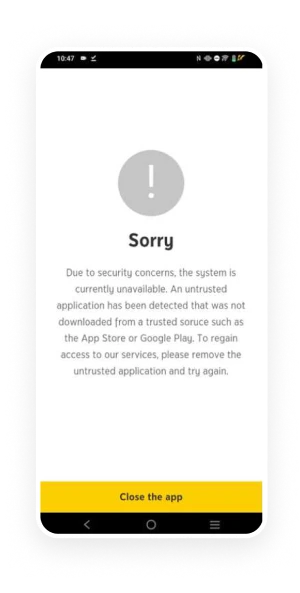
Unofficial Apps or App Modification Detected
(e.g., apps not downloaded from App Store, Play Store, Huawei AppGallery;
tampering with app integrity)
iOS
Android
Fix:
Uninstall the Krungsri Biz Online app and reinstall it from your device’s official store, such as the App Store, Play Store, or Huawei AppGallery.
For Android users only, if you still cannot access the app after completing step 1, please verify your device certification as follows:
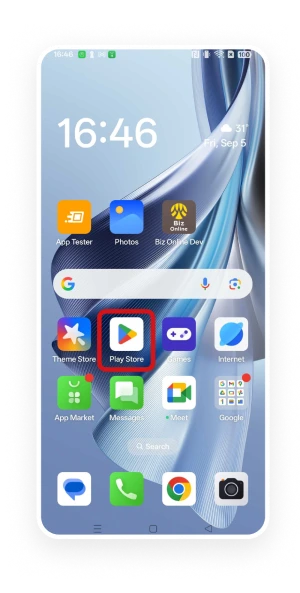
2.1 Open the Google Play Store app
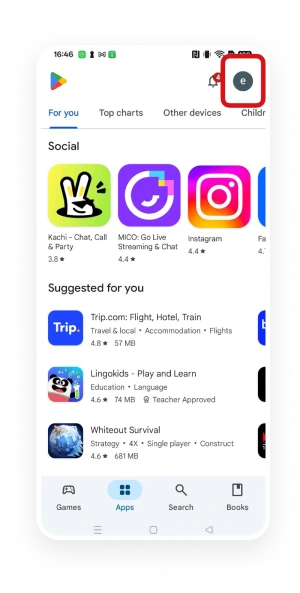
2.2 Tap the profile icon at the top right corner
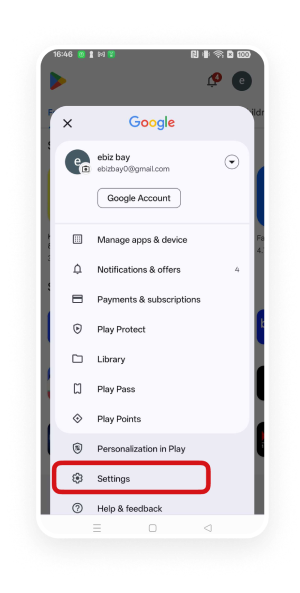
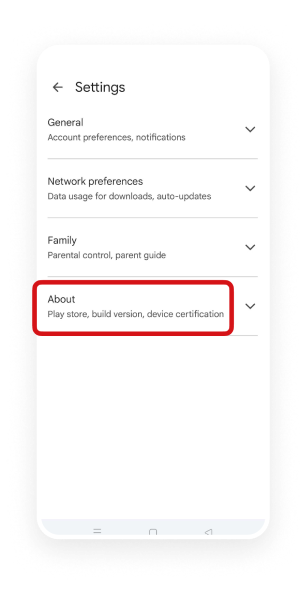
2.3 Select Settings
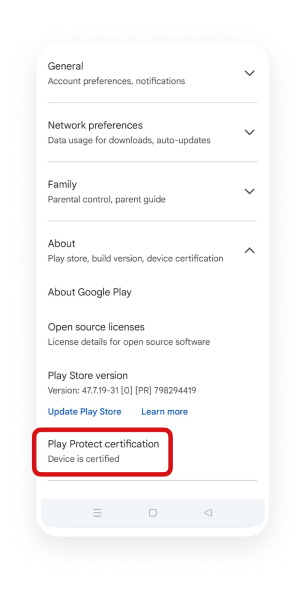
2.4 Check the device certification under Play Protect certification by selecting About
2.5 If your device is not certified, or if it is certified but you still cannot resolve the issue, please contact your device service center or authorized dealer for assistance.
2.1 Open the Google Play Store app
2.2 Tap the profile icon
2.3 Select Settings
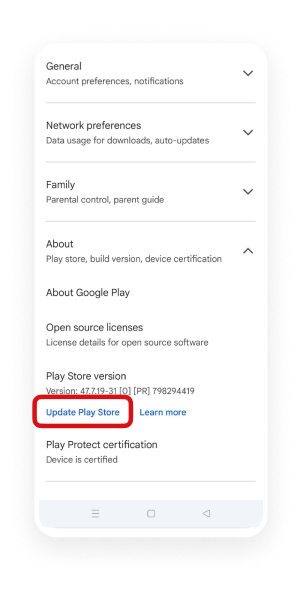
2.4 Selecting “About”
2.5 Selecting “Play Store” (Update Play Store)
2.6 If the device is certified,
the system will display the message
"Device is certified." Please log in again.
3
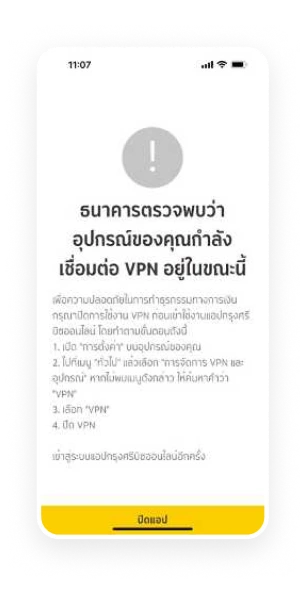
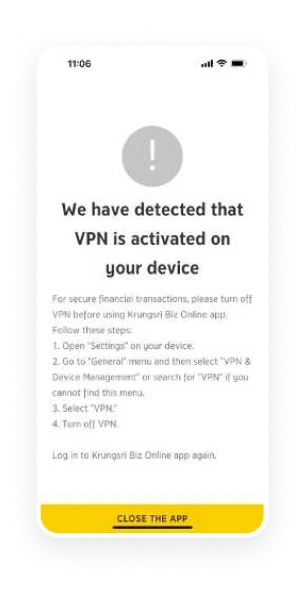
VPN Connection Detected (VPN usage increases risk of fraudulent control)
Display screen
Fix:
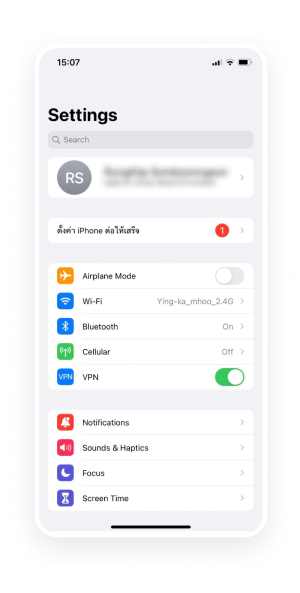
Turn off VPN in your device settings (iOS / Android)
Turn off VPN
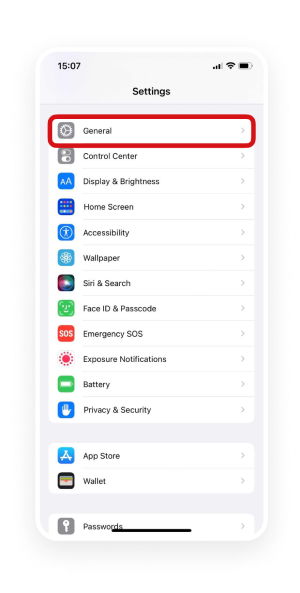
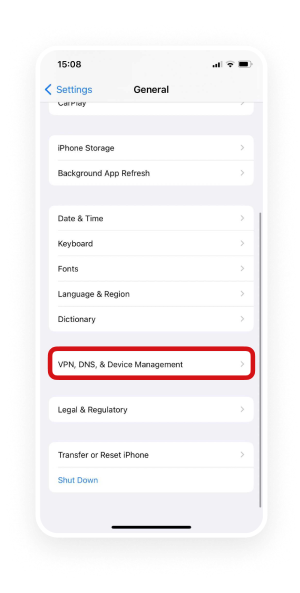
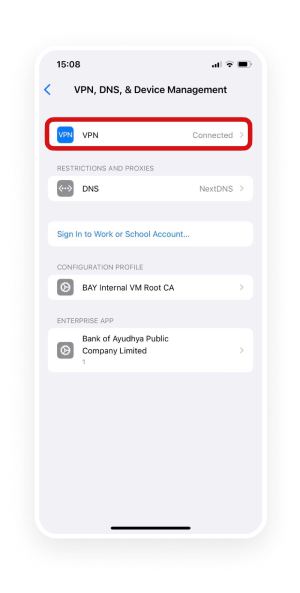
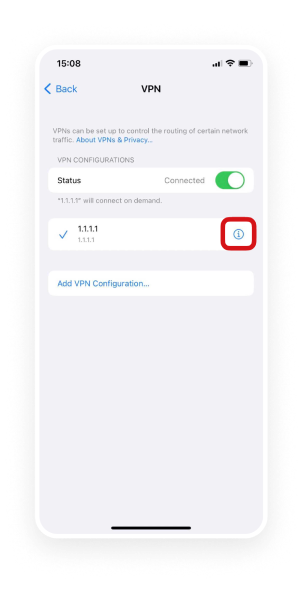
iOS
1. Go to "Settings"
2. Select "General"
3. Go to "VPN, DNS and Device Management"
4. Select "VPN"
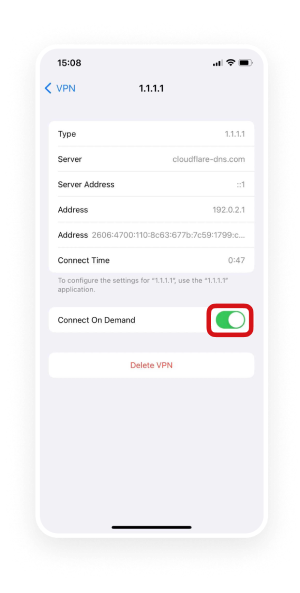
5. Go to icon "i"
6. Close Connect
Turn off VPN
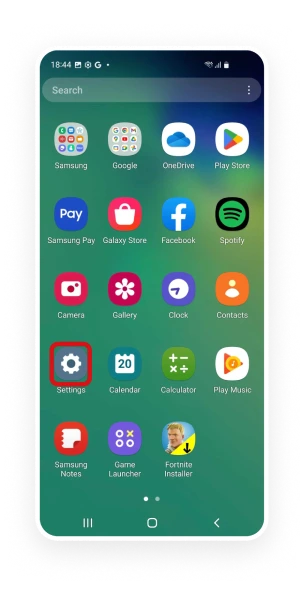
Android
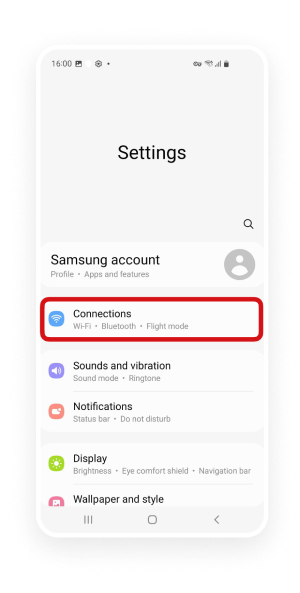
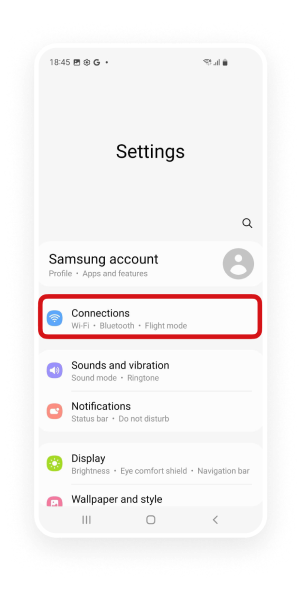
1. Go to "Settings"
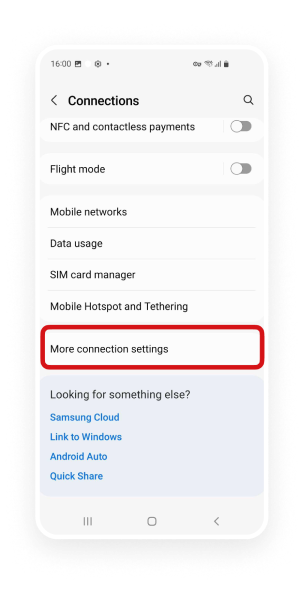
2. Go to "Connections"
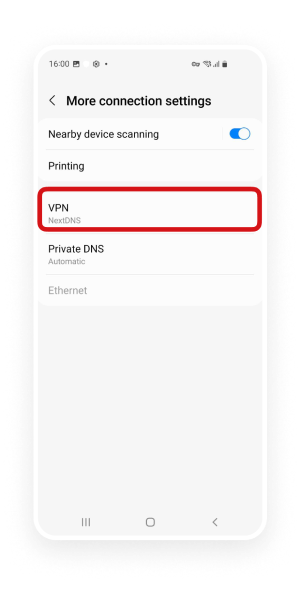
3. Select "More connection setting"
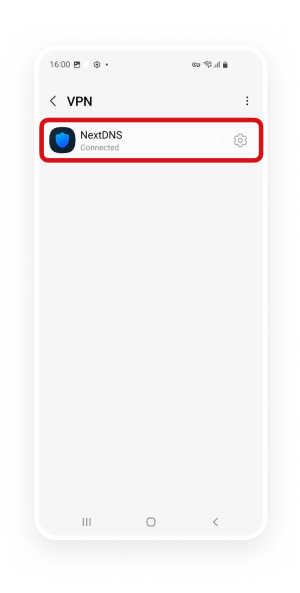
4. Select "VPN"
5. Close Connected
4
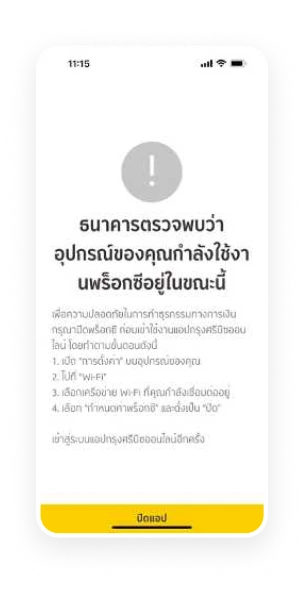
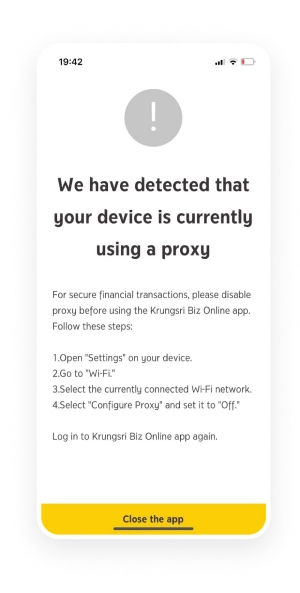
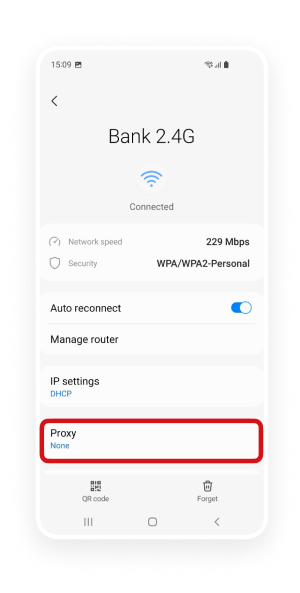
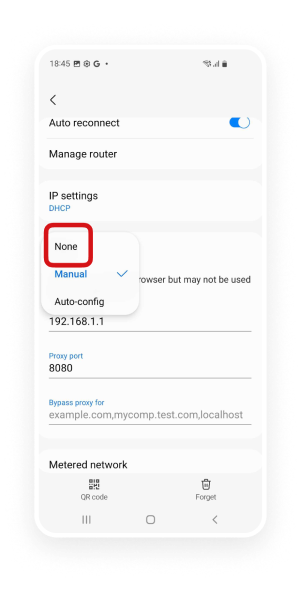
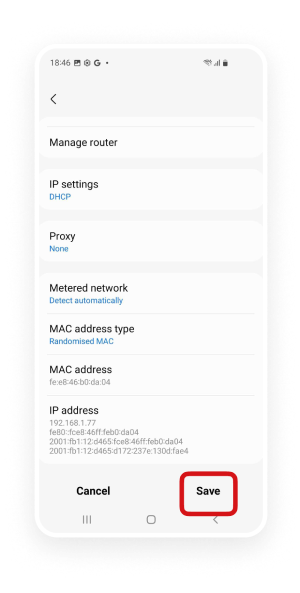
Proxy Connection Detected (Proxy usage increases risk of fraudulent control)
Display screen
Fix:
Turn off Proxy in your device settings (iOS / Android)
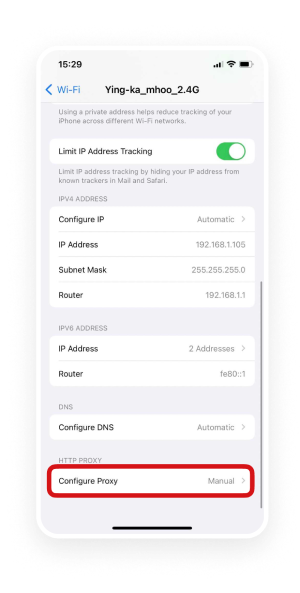
Turn off Proxy
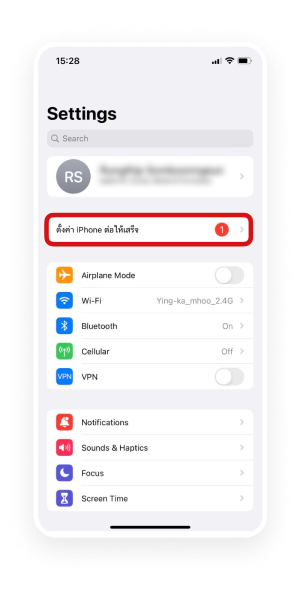
iOS
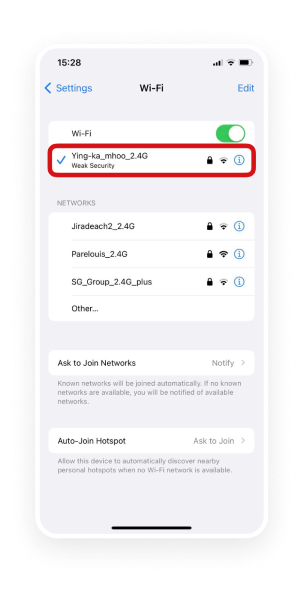
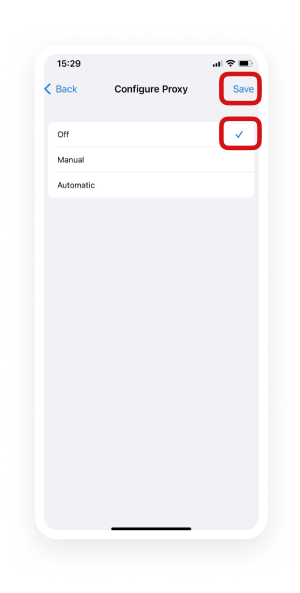
1. Go to "Settings" and select "Wi-Fi"
2. Select "Wi-Fi" of the currently connected network.
3. Select "Configure Proxy"
4. Close Setting and Save
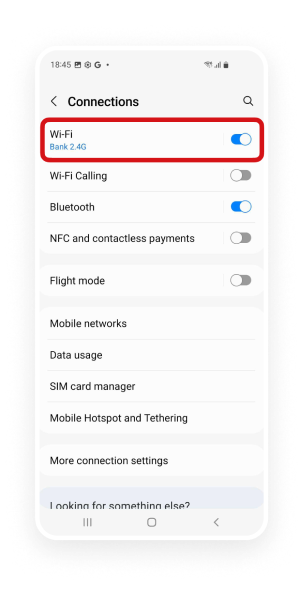
Turn off Proxy
Android
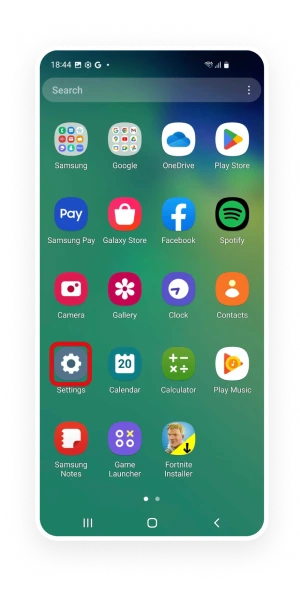
1. Go to "Settings"
2. Go to "Connections"
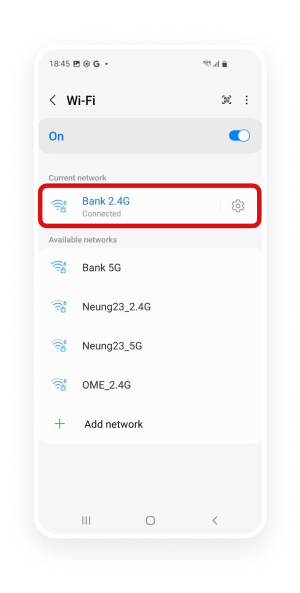
3. Go to "Wi-Fi"
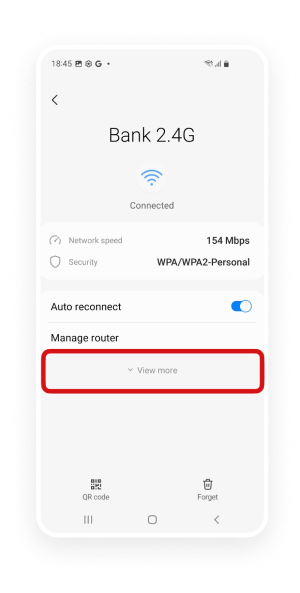
4. Select "Wi-Fi" of the currently connected network.
5. Go to "View more"
6. Select "Proxy"
7. Select "None" Setting
8. Save
5
Accessibility Feature Usage Detected with Unofficial Apps
Display screen
Fix:
Check Accessibility settings for “Assistant Menu” or apps with accessibility permissions
Disable these before using Krungsri Biz Online
6
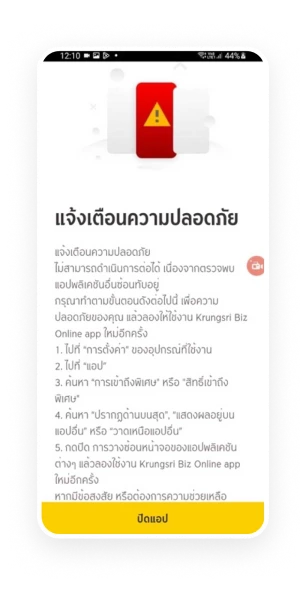
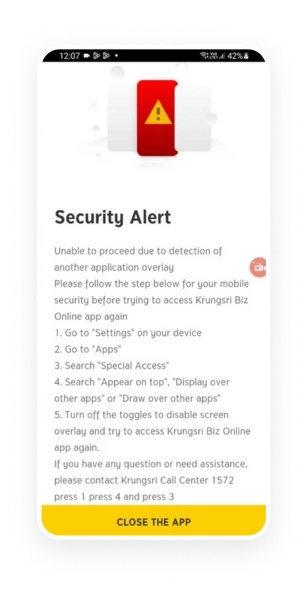
Overlay (Floating) Apps Detected (Potential risk of fraud)
Display screen
Fix:
Go to Settings > Apps > Special Access > Display Over Other Apps
Disable overlay permissions
Restart Krungsri Biz Online app
7
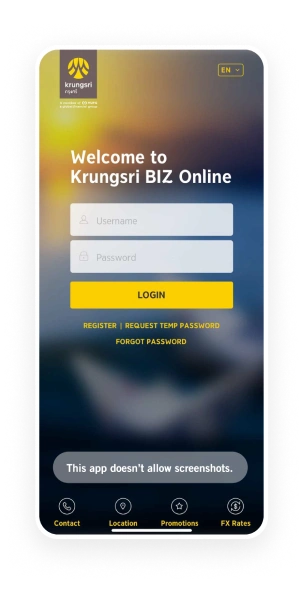
Screen Capture or Screen Recording Detected
Display screen Capture screen
iOS
Android
Display screen Video record
iOS
Android
Fix:
Do NOT take screenshots or record your screen while using the app
Recommendations to Stay Secure & Avoid Access Suspension
Always update Krungsri Biz Online to the latest version
Download apps only from Play Store, App Store, or Huawei AppGallery
Avoid downloading or clicking links to apps outside official stores
Delete any apps not installed from official sources
Disable Accessibility features when not using Krungsri Biz Online